+1 Arm Length Controls Guide
PC and mobile inputs for clean training, safer gate pulls, and polite play in eight-player servers.
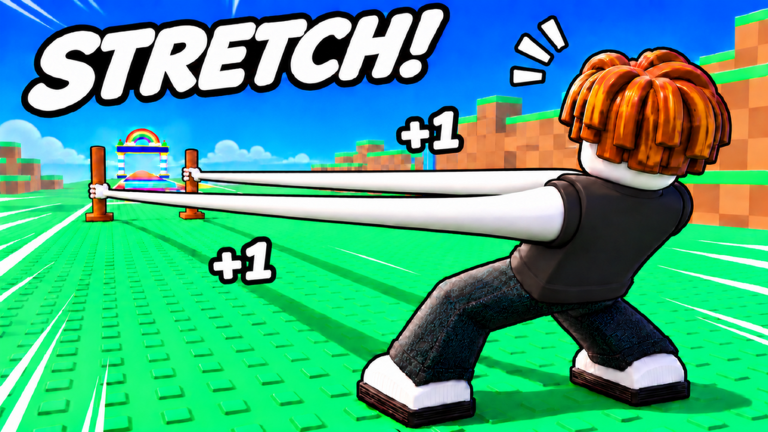
Clean inputs make +1 Arm Length feel fair. Sloppy camera work and blocked gates make eight-player servers feel hostile. This Controls Guide covers PC and mobile movement, training, launch-gate interaction, menu navigation, camera habits, accessibility notes, and etiquette while launching. Exact Roblox keybinds can vary with device settings and custom binds, but the gameplay verbs stay stable across Meadow, Ice, Lava, and Golden Dunes. Use this page with the Players Hub for session habits and the Guides Hub for mechanical depth.
PC controls
Movement and camera
- Move with WASD or arrow keys between training pads, shops, reward panels, and the launch gate.
- Look with mouse camera. Before a launch, frame the rainbow track entry and keep HUD buttons visible at the screen edges.
- Jump with Space on uneven Ice, Lava, or Golden Dunes geometry when you need a quick reposition.
- Shift / sprint behavior follows your Roblox character settings if enabled; do not sprint through a player who is mid-gate interaction.
Tip: a stable framerate helps Perfect Rhythm more than max graphics. If menus hitch in busy servers, lower graphics quality for long train blocks, then raise it again if you prefer clearer world detail while exploring.
Training inputs
- Stand on a training pad until the train prompt or on-screen control appears.
- Click or use the on-screen train control to hit training actions.
- Keep the camera angled so the pad UI is not buried under chat or backpack clutter.
- Between hits, glance at Power and arm-length readouts so you know when a launch is worth taking.
Deep training priorities live in How to Train. Controls only get you onto the pad; rhythm quality multiplies every upgrade.
Launch gate inputs
- Walk to the launch gate without body-blocking other players already interacting.
- Face the gate, trigger the interact or pull control, and commit to the timing window.
- Keep mouse look gentle during the pull so you do not yank the camera off the track.
- After the fling, be ready to use movement keys when you land or return so you are not stranded in menus.
Technique detail is in How to Launch. On PC, the biggest control failure is camera panic during the pull, not missing a secret key.
Menus and codes
- Open Shop, Rewards, Codes, Pets, Arms, Fists, and Rebirth through HUD buttons.
- Paste promo strings with Ctrl+V in the Codes field after copying from a trusted Strong Bunny Studio group shout.
- Avoid trailing spaces when pasting. If a code fails, re-copy rather than typing from memory.
- Full redeem path: How to Redeem. Current free systems overview: Codes.
Mobile controls
Movement and camera
- Use the thumb stick to reach pads, shops, and gates.
- Drag on open screen space to move the camera. Line up the rainbow track before you commit to a launch.
- Prefer landscape orientation so HUD icons are less likely to hide under the joystick or chat.
- If a reward button sits under system UI, rotate slightly or pinch-zoom carefully until the tap target is clear.
Training and launching with touch
- Tap training controls; hold only when a prompt explicitly asks for a sustained press.
- Approach the launch gate slowly so joystick drift does not bump another player out of interaction range.
- Tap interact, then keep thumbs ready for post-landing movement.
- During long train blocks, periodically lift a thumb to claim Online tiers so active time is not wasted.
Menus and codes on mobile
- Tap HUD icons for Rewards, Shop, Pets, and Codes.
- Paste carefully; mobile keyboards love autocorrect and trailing spaces that break redeems.
- Claim Daily and Group Chest near spawn before traveling far, so you are not fighting joystick precision while hunting tiny tabs.
Camera tips that improve launches
- Frame the gate and the first stretch of rainbow track before interacting.
- Keep important HUD corners unobstructed — especially Rewards and any potion timers.
- On PC, reduce mouse sensitivity if micro-flicks ruin pull timing.
- On mobile, recenter the camera after chat opens; chat panels steal drag space.
- After world hops (Ice fog, Lava glow, desert haze), take five seconds to reorient before your first Golden Dunes launch. World context: Worlds Guide and World 7 Golden Dunes.
Accessibility and comfort notes
- Use Roblox accessibility settings for camera invert, sensitivity, and graphics if default controls strain your hands or eyes.
- Take breaks during long Perfect Rhythm grinds; accuracy drops when fingers fatigue.
- If color-heavy world themes make UI hard to parse, increase GUI scale where available and rely on icon position memory after patches.
- One-handed mobile play is possible but slower near gates; give yourself extra space in busy servers.
- Keyboard-only or controller users should verify interact bindings in Roblox settings before a serious launch session.
These notes do not replace official Roblox accessibility documentation; they flag habits that keep +1 Arm Length playable during long farm sessions.
Server size and launch etiquette
Servers are small — about eight players. Your body, camera orbit, and AFK spot matter.
- Do not stand on training pads you are not using.
- Do not body-block the launch gate or orbit someone mid-pull.
- Wait your turn if another player is clearly interacting with the gate.
- Skip chat spam, fake code lists, and script advertisements.
- Offer advice without asking for passwords, cookies, or account logins.
- If you research automation despite the risks on Scripts, do not turn shared spaces into obstacle courses.
Good etiquette is part of strong play. The Players Hub covers session templates and social signals; this page is the input and manners deep dive.
Quick reference checklist
- Load in, claim rewards, set camera
- Move to pad, train with clear UI
- Equip pets and fist via menus before long blocks
- Approach gate with space for others
- Pull cleanly, recover movement after landing
- Open shop only when Wins and priorities are clear — Arms Tier List, Fists Tier List, Pets Tier List
- End sessions with Online claims so active time pays out
Related pages
- Players Hub — session habits and strong-player patterns
- Getting Started — day-one flow
- How to Train — pad priorities
- How to Launch — gate technique
- Bosses Guide — prep before fight UI
- Official Links — group and game destinations
Master the verbs — move, train, pull, claim, equip — and the rest of the wiki’s upgrade advice becomes easier to execute on both PC and mobile.
Frequently Asked Questions
Quick answers for +1 Arm Length players.
What are the basic PC controls for +1 Arm Length?
Use WASD to move, mouse to look, click or on-screen controls to train, Space to jump, and HUD buttons for shop, rewards, codes, pets, and rebirth. Paste codes with Ctrl+V.
How do mobile controls work for training and launches?
Use the thumb stick to move, drag to aim the camera, and tap training or gate prompts. Landscape mode makes HUD targets easier to hit.
How many players are in a server?
About eight. Leave space at pads and launch gates, and avoid blocking someone mid-pull.
Any camera tips before a rainbow launch?
Frame the gate and first track segment, keep HUD corners visible, and reduce sensitivity if micro-flicks ruin timing.
Where should I go after learning controls?
Follow Getting Started, then How to Train and How to Launch. Use the Players Hub for session structure and etiquette.
Do controls change in World 7 Golden Dunes?
The verbs stay the same. Reorient your camera for desert sight lines and keep the same polite gate habits in eight-player servers.